Review the doctype details
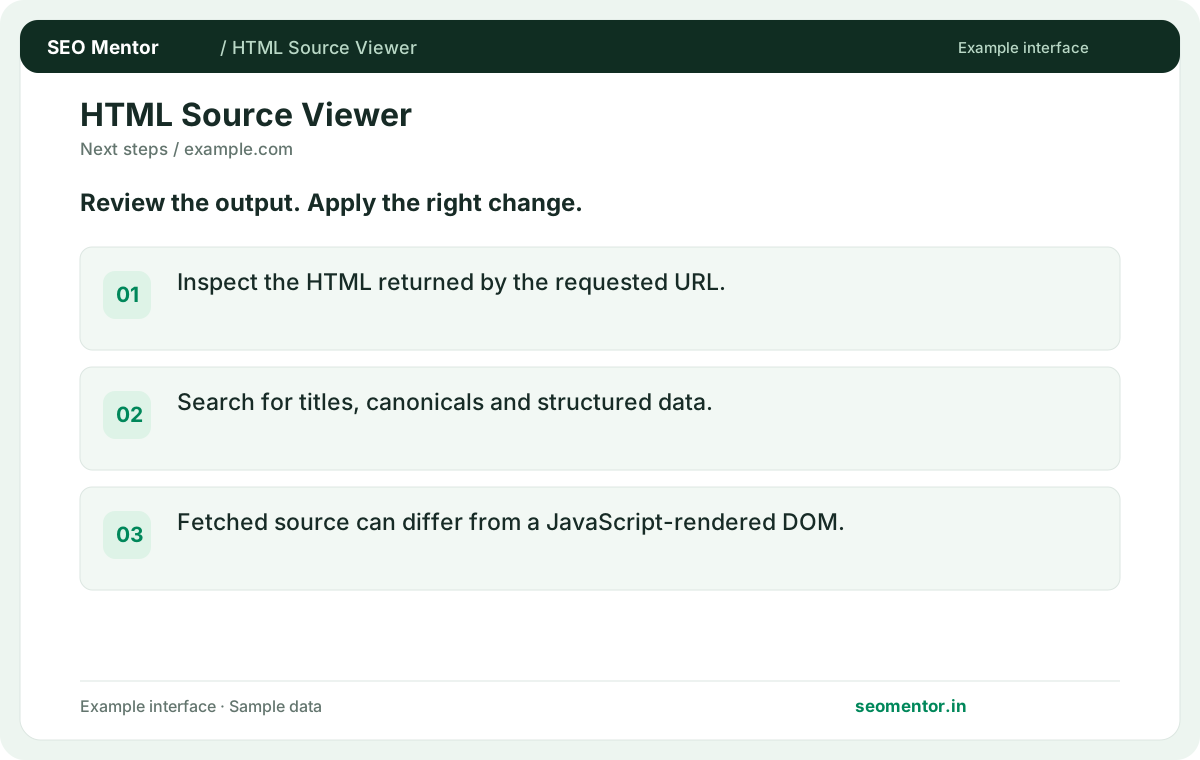
Inspect the HTML returned by the requested URL. Compare the reported doctype, title, h1 with the page or domain you intended to check.
View the HTML returned by a public URL. Inspect the source for metadata, links and page markup before browser scripts modify the DOM.
Use HTML Source Viewer ↗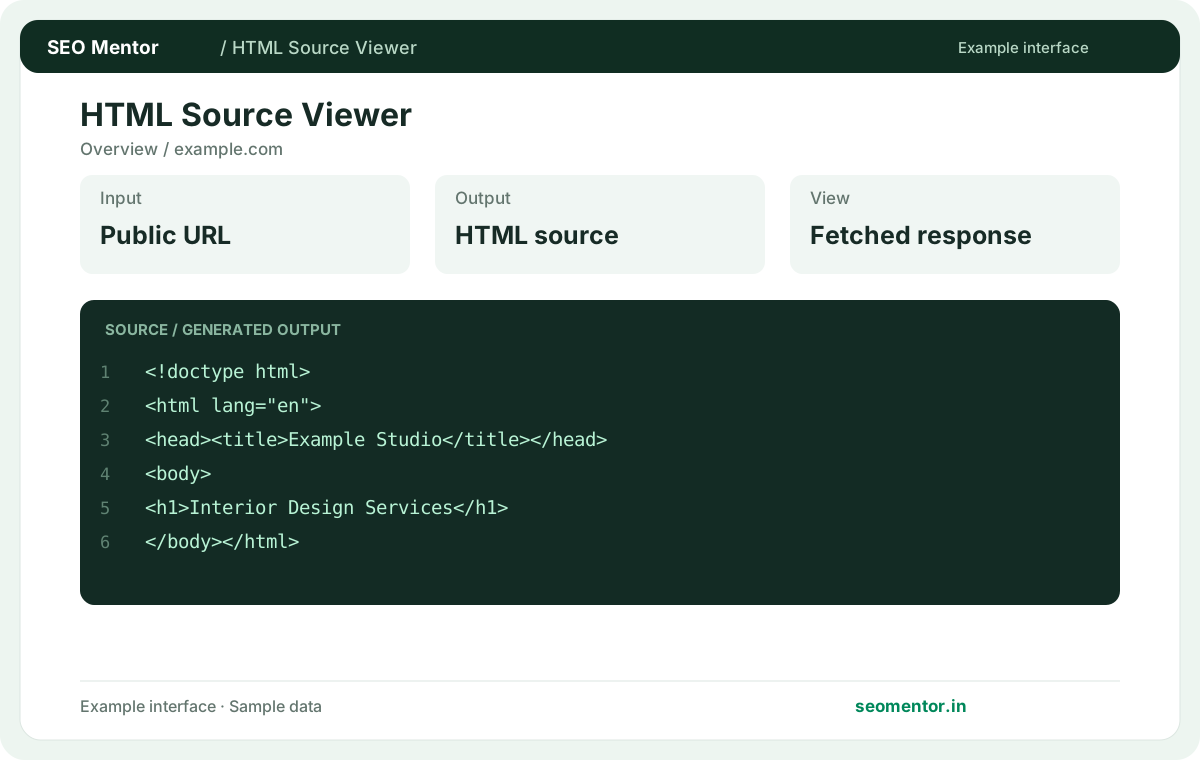
Enter the required details to preview the available output and access applicable report options.
Free to use. Results appear on this page.
Server-returned HTML may differ from the browser-rendered page after JavaScript runs. Use the relevant fields to identify what needs further investigation.
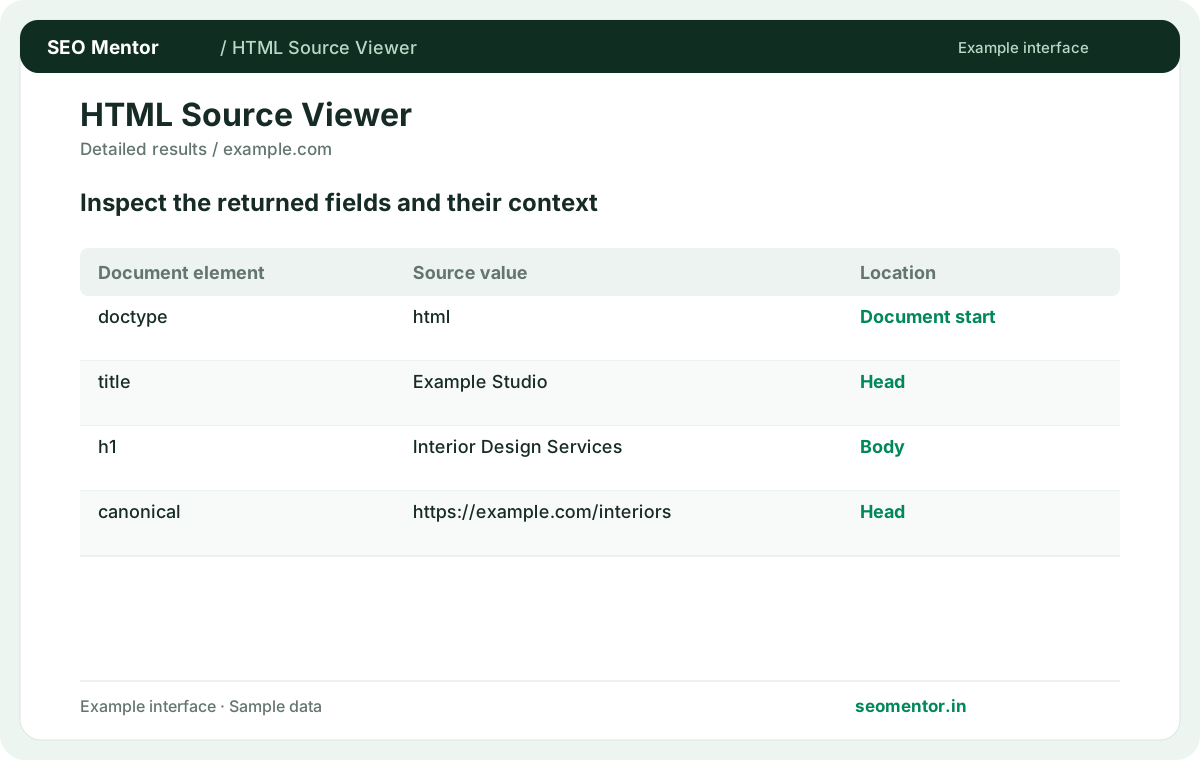
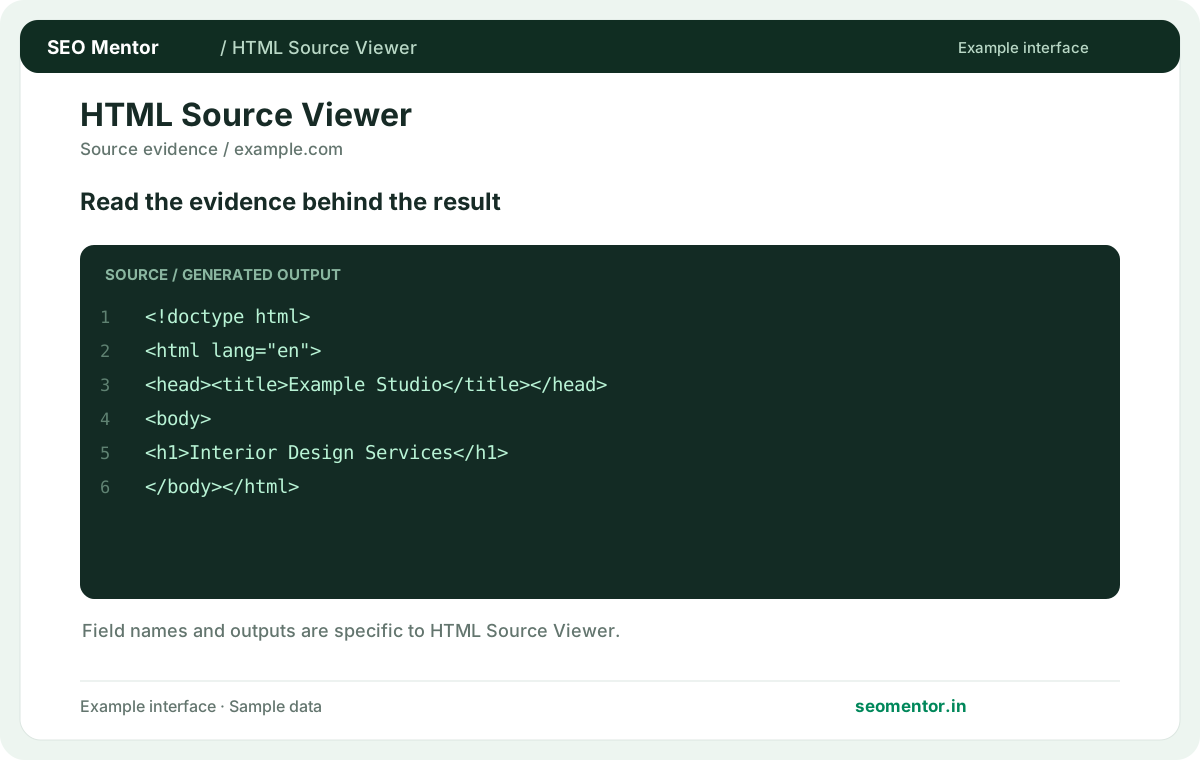
Look at html document head, meta tag presence, link elements together, rather than drawing conclusions from one value.
Server-returned HTML may differ from the browser-rendered page after JavaScript runs. Document the input, verify the result and compare similar pages where appropriate.
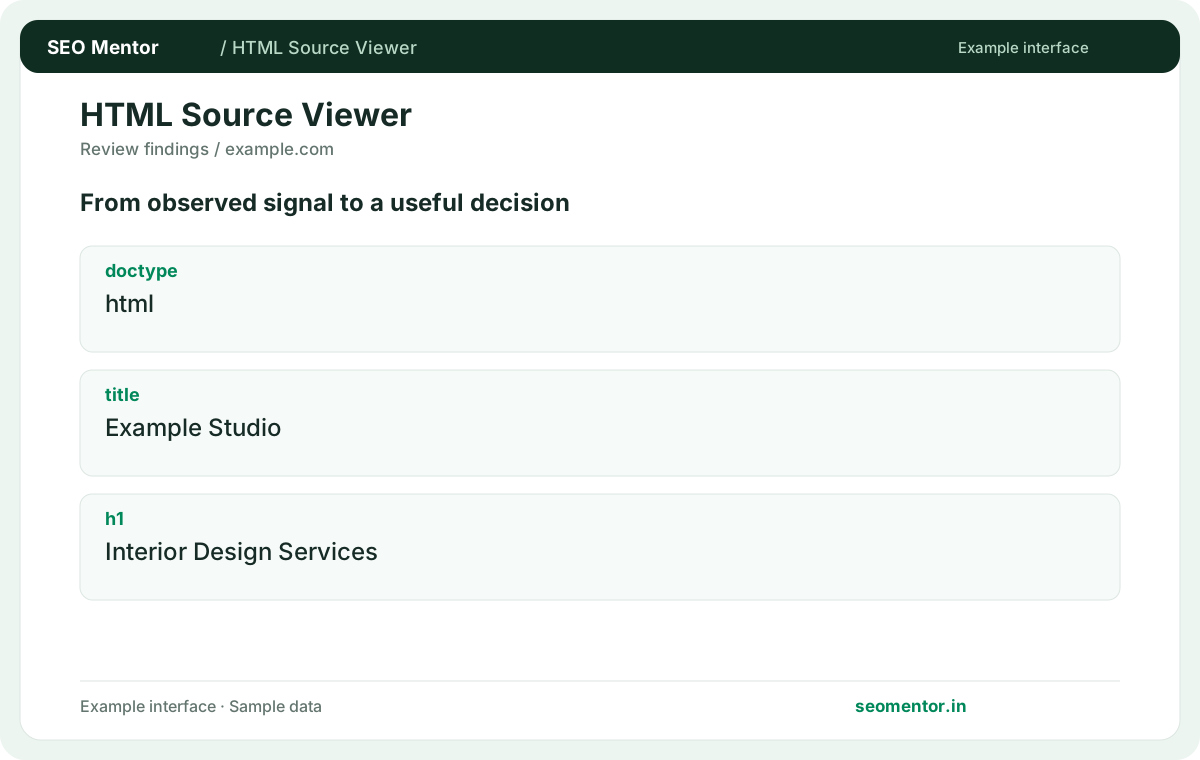
Use the findings to prioritise useful changes for visitors. Server-returned HTML may differ from the browser-rendered page after JavaScript runs.
Inspect the HTML returned for a public website address. Use the source to investigate metadata, headings and embedded structured data, while checking separately for content inserted by JavaScript.
Inspect the HTML returned by the requested URL. Compare the reported doctype, title, h1 with the page or domain you intended to check.
Search for titles, canonicals and structured data. Fetched source can differ from a JavaScript-rendered DOM.
Keep the result alongside the page or domain reviewed, so you can compare the evidence after making changes.
It is the markup received from the public URL after the request. Review it to see what the server supplies before page scripts change the document.
Related check — Why does the source show a different page? The request may have followed a redirect. Verify the final URL and whether regional or cookie-dependent variants are involved.
Browser developer tools can show the rendered DOM. Compare them when scripts insert or rewrite key content.
Related check — Why is my script-generated content absent? The source view shows the response body. Use the browser's rendered DOM to see elements inserted after JavaScript runs.
Search the returned head markup for the canonical declaration. Compare the target with the final URL and check for duplicate tags.
Related check — How can I debug duplicated markup? Search the source for repeated tag names or section identifiers. Then trace the duplicates to the relevant CMS template or plugin.
The source view shows the response body. Use the browser's rendered DOM to see elements inserted after JavaScript runs.
Related check — How does this differ from Inspect Element? Browser developer tools can show the rendered DOM. Compare them when scripts insert or rewrite key content.
Look for an access-denied message or challenge markup. Verify that the response is the intended public page before analysing its tags.
Related check — Can I see private server files? The viewer retrieves publicly served responses. Server templates, private configuration and authenticated pages require access through the hosting environment.
Search for the new title, description and relevant social tags. Confirm that the values are present once and match the intended page.
After a CMS release, search the response for the new description text and for duplicate robots or canonical tags added by plugins. Compare the fetched result with your source template to isolate whether the issue comes from the deployed markup or browser-side code.
The request may have followed a redirect. Verify the final URL and whether regional or cookie-dependent variants are involved.
Related check — What is the returned HTML source? It is the markup received from the public URL after the request. Review it to see what the server supplies before page scripts change the document.
The viewer retrieves publicly served responses. Server templates, private configuration and authenticated pages require access through the hosting environment.
Related check — When is the source view better than a screenshot? Use it to verify markup, directives and links that are not visually obvious. A screenshot helps evaluate the rendered layout.
Search the source for repeated tag names or section identifiers. Then trace the duplicates to the relevant CMS template or plugin.
Related check — What should I inspect after deploying metadata? After a CMS release, search the response for the new description text and for duplicate robots or canonical tags added by plugins. Compare the fetched result with your source template to isolate whether the issue comes from the deployed markup or browser-side code.
Use it to verify markup, directives and links that are not visually obvious. A screenshot helps evaluate the rendered layout.
Related check — How can I spot a blocked fetch? Look for an access-denied message or challenge markup. Verify that the response is the intended public page before analysing its tags.
SEO Mentor helps you identify opportunities. SEOKart can help put those findings into action with professional SEO services, technical improvements and ongoing optimisation.
Explore SEOKart SEO Services